Every OAuth app your staff connected to your Microsoft tenant
An OAuth app grant is a separate credential from your password. Microsoft documents that a user changing their own password leaves a third-party app's refresh token alive, and that refresh token lasts 90 days and renews on every use. Find the list under Enterprise apps, Permissions, in the Microsoft Entra admin center.
- An OAuth grant is a credential your password reset does not touch. Microsoft's own table shows a user-initiated password change leaves a third-party app's refresh token alive.
- Guest accounts and OAuth apps are two different lists in two different blades. A tidy guest list proves nothing about your app grants.
- Read the end of the permission description. An application permission ends with the phrase without a signed-in user and reaches the whole tenant.
- Tightening the user consent setting changes nothing already granted. Microsoft states existing consent grants remain unchanged.
- You cannot revoke a staff member's own app grant from the portal's User consent tab. That one needs PowerShell, the user's own My Apps page, or the per-user Applications blade.
What is an OAuth app grant in your Microsoft tenant?
An OAuth app grant is a standing permission one of your staff gave an outside application to read or change your Microsoft 365 data. Somebody clicked Sign in with Microsoft on a free tool and approved a list of permissions. That approval is recorded in your tenant, and nothing expires it.
The grant is a separate credential from the password. It is not a password, so your password policy never reaches it. Microsoft's identity platform hands the app a refresh token instead, and the default lifetime is 90 days for all scenarios other than single-page apps. Worse for anyone trying to audit this, refresh tokens replace themselves with a fresh token upon every use. A rolling 90 days never runs out while the app keeps calling.
An app you forgot about is a third party you stopped counting. Verizon found a third party involved in 48 percent of all breaches and third-party supply chain breaches up 60 percent in a year. Your tenant does not rank those apps by trust. It just keeps serving them.
This post gives you four screens to check, the exact default settings with their names, a two-part rule for reading a permission string, and what revoking does not do. Application grants are not guest accounts. Guest access sprawl in Microsoft 365 covers external people, which is a different list in a different blade. This one covers external software.
Why a password reset does not remove an OAuth app
A password reset does not remove an OAuth app because the app holds its own credential, issued to the software rather than to the person. An OAuth grant survives a password change, so it survives the one remedy almost every small firm reaches for first. Microsoft publishes a token revocation table that settles this. The column that matters is Confidential client token, the class a hosted third-party app falls into.
- Password expires. The app's refresh token stays alive.
- Password changed by the user. The token stays alive.
- User runs a self-service password reset. The token stays alive.
- Admin resets the password from the Microsoft Entra admin center or the Microsoft 365 admin center. The token is revoked.
- Admin revokes all refresh tokens for a user. The token is revoked.
So where the reset happens decides the outcome, which is the part nobody is told. A staff member who changes their own password after a suspicious email leaves every app grant working. An administrator who resets that same password from the Microsoft 365 admin center kills the tokens. Most firms do the first and believe they did the second.
Multi-factor authentication does not close the gap either. Microsoft's guidance on the illicit consent grant attack states that normal remediation steps, for example resetting passwords or requiring multifactor authentication, aren't effective against this type of attack, because these apps are external to the organization. Once consent is recorded, the app has account-level access to data without the need for an organizational account. That makes an over-granted app a persistence mechanism, not a one-off mistake.
The clock matters because detection is slow. IBM measured an average 247 days to identify and contain an active breach across all industries. A dormant grant has months to be useful to somebody else.
Where to find every OAuth app connected to your tenant
To find every OAuth app, check four screens across two portals. Inventory the apps before you judge any of them, because no single screen shows the whole picture and the one most people open shows the least.
- All applications. Microsoft Entra admin center, Entra ID, Enterprise apps, All applications. Set the Application Type filter to All applications first, because Enterprise Applications shows non-Microsoft applications only.
- Permissions. Open an app and select Permissions. The Admin consent tab shows permissions that apply to your entire organization and the User consent tab shows permissions granted to a specific user or group.
- One person's apps. Users, All users, pick the person, then Applications. Microsoft documents this screen as the way to look up the applications to which any individual user has granted permissions.
- The staff member's own view. Send them to myapps.microsoft.com, which allows users to review and remove any non-Microsoft applications that currently have access to their data.
The audit log tells you who approved what. Search Microsoft Purview Audit in the Microsoft Defender portal for the activity Consent to application, then check whether IsAdminConsent is set to True. Allow for lag. Microsoft states it can take from 30 minutes up to 24 hours for the corresponding audit log entry to be displayed in search results. Microsoft also names one value to hunt for in an export, the consent type AllPrincipals, which allows the client application to access everyone's content in the tenancy.
Set a cadence rather than running one sweep and closing the tab. Microsoft's stated best practice is to review consent grants in organizations on a weekly basis. Quarterly is a defensible floor for a twenty-person firm. Never is the setting almost everywhere.
How to read a permission string in one look
To read a permission string, split it into three parts, then read the last line of its description. Microsoft Graph permissions follow the naming pattern resource, operation, constraint, and each part answers one question about reach.
- Resource. What data it touches. Mail, Files, User, Group, Directory.
- Operation. What it can do, drawn from Read, ReadBasic, ReadWrite, Create, Manage, or Migrate.
- Constraint. How far it reaches. When the constraint is missing, Microsoft states the default constraint is limited to data that's owned by the signed-in user. The word All means the whole directory.
Two real strings show the gap. User.Read allows the app to read information about the signed-in user. Application.ReadWrite.All allows the app to manage all applications in the tenant. Same grammar, very different blast radius. The word All is the one to stop on.
Then read the end of the description, because that one phrase names the permission type. Microsoft states that the description for application permissions generally ends in "without a signed-in user", while a delegated permission description generally ends with "on behalf of the signed-in user". Microsoft's rule for anything you cannot place is blunt: if you don't understand a permission that's being requested, don't grant consent.
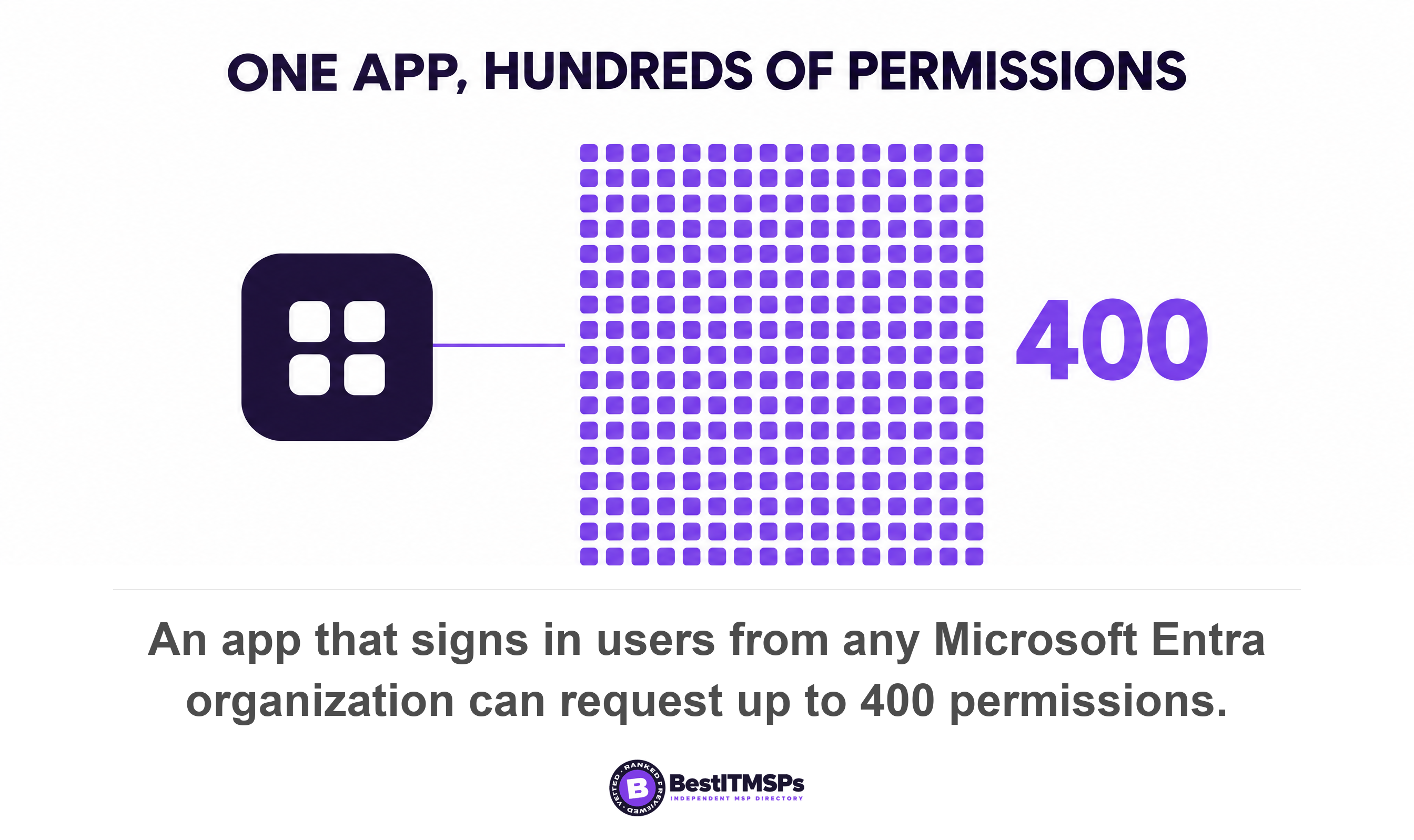
Three strings deserve a hard stop on sight. Microsoft names Directory.AccessAsUser.All as the highest privileged delegated permission, granting access to nearly all API operations across Microsoft Entra ID, with Directory.ReadWrite.All second in privilege ranking and Directory.Read.All the highest privileged read-only permission for the same scope. Scale is the other thing to know. Microsoft caps what one app can ask for at 400 permissions for an app that signs in users from any Microsoft Entra organization, so the ceiling is nowhere near your intuition.
Delegated versus application permissions, and why the second is worse
A delegated permission is capped by the person's own access. An application permission is not. That single difference is why the second is worse, and it is the thing to check before anyone approves a new tool.
With a delegated permission, the application isn't able to access anything the signed in user couldn't access. Microsoft's example is exact. An app granted Files.Read.All on behalf of one user is only able to read files that the user can personally access.
With an application permission, the same string reaches everything. Microsoft states that an application granted the Files.Read.All application permission can read any file in the organization, and that this class works without a signed-in user present. Only an administrator can approve it, because only admin can consent to application permissions.
The practical read is that a delegated grant inherits your access model, so it is only as tight as your file permissions already are. That is the same mechanism behind Copilot seeing everything your users can see. An application permission ignores your access model completely.
A delegated permission is as wide as the person who approved it. An application permission is as wide as your tenant.
What your Microsoft tenant allows by default
Your tenant lets ordinary staff approve apps out of the box. Microsoft states that by default, all users are allowed to consent to applications for permissions that don't require administrator consent. A permissive default is not a bug. Microsoft ships it so that software works on day one. Four settings govern it, and each has an exact name worth writing down before you ask anybody to change anything.
- User consent for applications. Enterprise apps, Consent and permissions, User consent settings. The three built-in choices are to disable user consent, allow consent only to apps from verified publishers or your organization for permissions you select, or allow users to consent to all applications.
- Permission classifications. The middle choice does nothing until somebody classifies permissions as low impact, because users can consent only to the permissions classified as low impact.
- Admin consent requests. Same blade, Admin consent settings. The switch reads Users can request admin consent to apps they are unable to consent to, and the timer beside it is Consent request expires after (days). Microsoft notes it can take up to an hour for the workflow to become enabled.
- Risk-based step-up consent. This one is already on. Microsoft states the capability is enabled by default, but it results in a behavior change only when user consent is enabled, and that a risky request requires a step-up to admin consent instead.
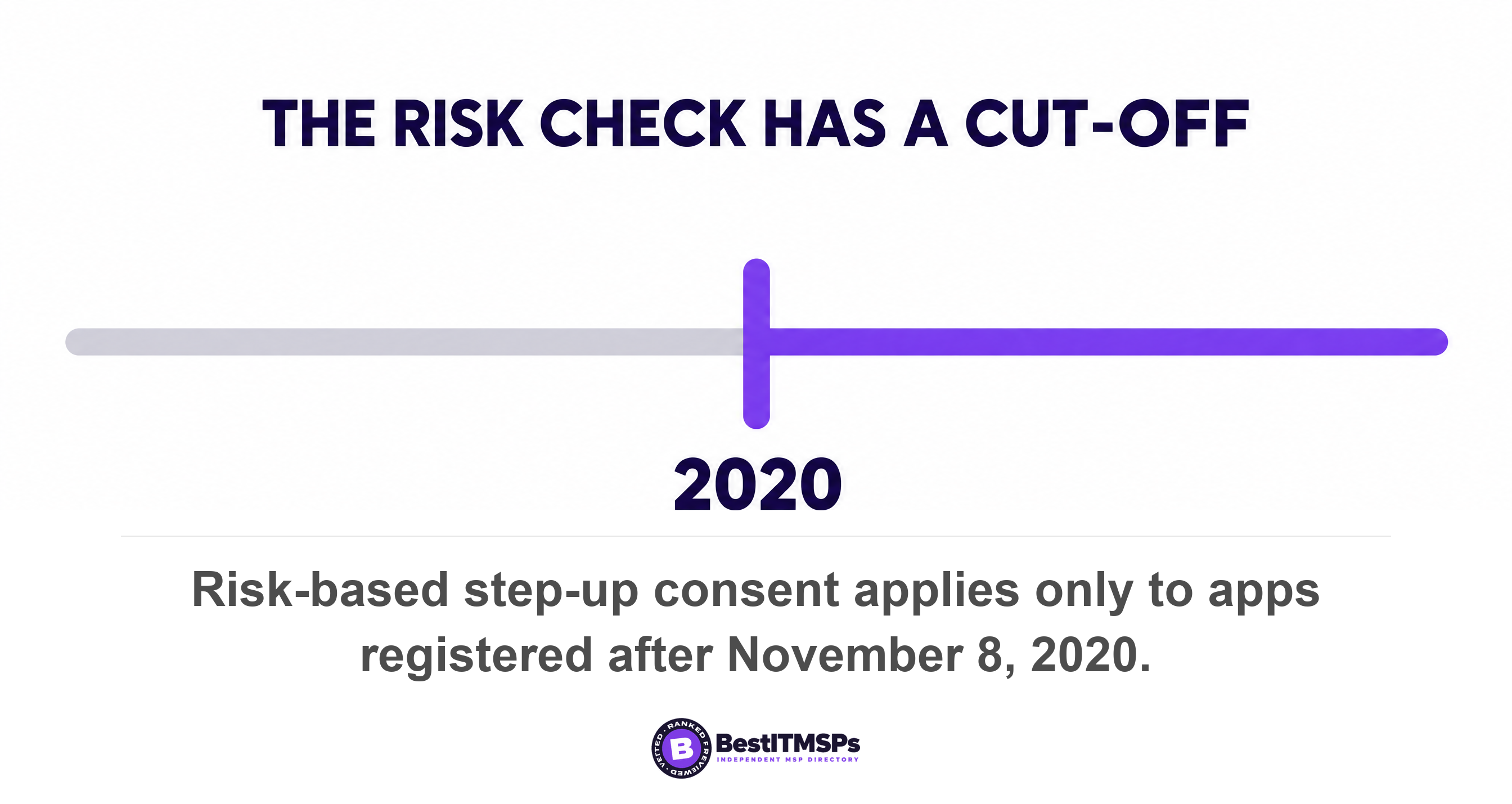
Read the small print on that last one, because it carries a cut-off date. The policy applies to apps that were registered after November 8, 2020, which use OAuth 2.0 to request permissions that extend beyond the basic sign-in and read user profile, and it targets newly registered multitenant apps that are not publisher verified. An older app registration sits outside the check entirely. So the protection you already own does not cover the oldest grants in your tenant, which are also the ones nobody remembers approving.
The verified badge is worth less than it looks. Publisher verification means the publisher proved its identity through a Microsoft AI Cloud Partner Program account, and Microsoft is explicit that the blue verified badge doesn't imply or indicate quality criteria you might look for in an app. It is also free, since Microsoft doesn't charge developers for publisher verification. Two fields on the consent prompt are pure claim. Microsoft states the app logo is provided by application developers and the ownership of this image isn't validated, and the app name likewise is provided by the developers and the ownership of this app name isn't validated. A convincing name beside a familiar logo proves nothing at all.
How to revoke a grant, and what revoking does not do
To revoke a grant, remove the permission and then invalidate the token, because those are two separate actions. Do only the first and a working key stays in somebody else's hands for up to an hour.
- Revoke the permission. Enterprise apps, All applications, pick the app, Permissions, Admin consent tab, the three-dot control, then Revoke permission.
- Remove one person's grant. Users, All users, the person, Applications, the app, then Remove on the Assignment detail page.
- Invalidate the tokens. On the user's Overview page select Revoke sessions, or run the Revoke-MgUserSignInSession cmdlet.
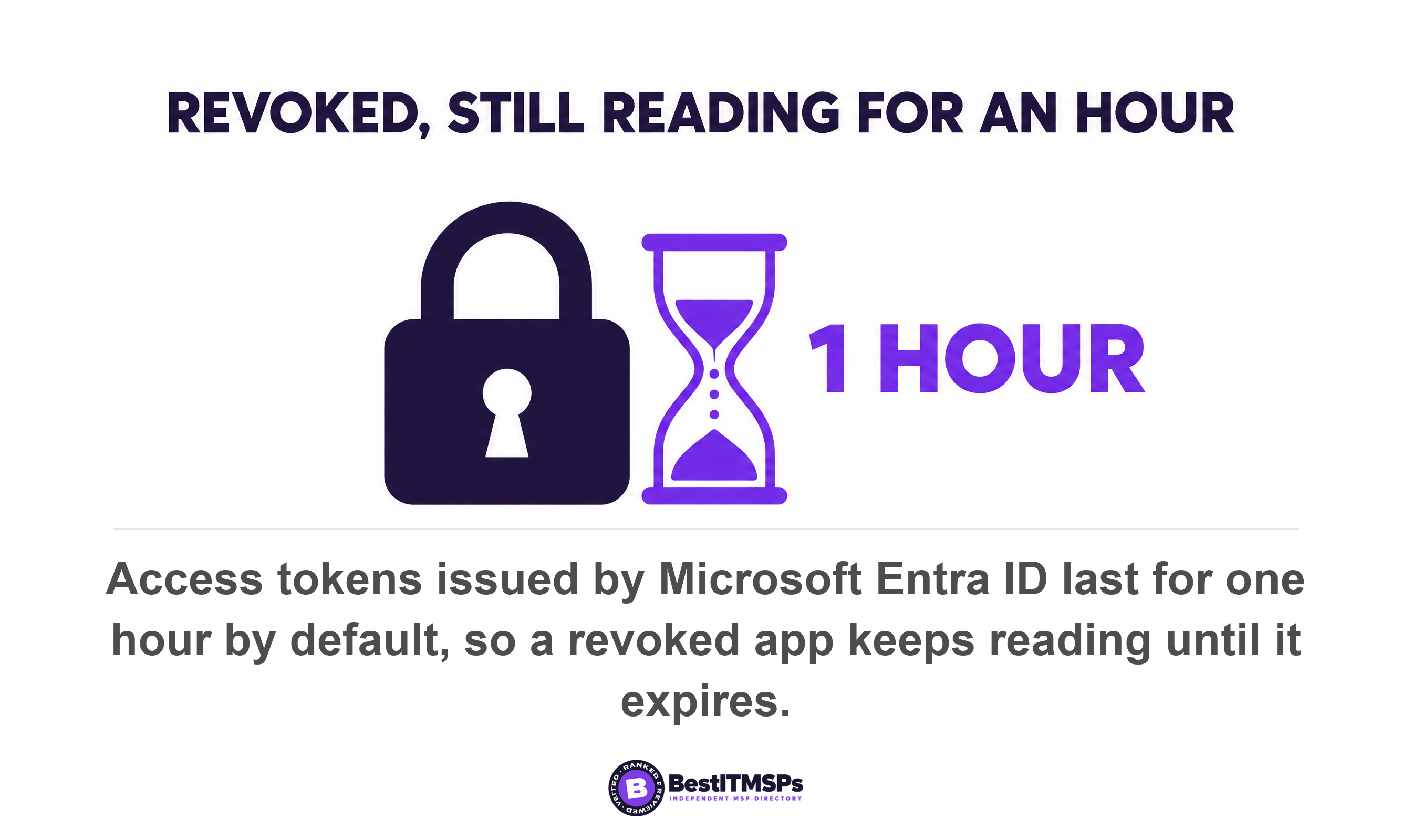
- Wait out the access token. Microsoft states access tokens issued by Microsoft Entra ID last for 1 hour by default, so the app keeps reading until the one it holds expires.
Two limits catch people out, and both are documented. First, you cannot finish this job in the portal. Microsoft states plainly that you can't revoke permissions in the User consent tab using the portal and points you at Microsoft Graph or PowerShell instead. The grants your staff made for themselves are exactly the ones with no button. Second, revoking is not a block. Microsoft notes that revoking the current granted permission doesn't stop users from re-consenting to the application's requested permissions. Useful detail if your provider claims this needs a Global Administrator: Microsoft lists a service principal owner who isn't an administrator as able to invalidate refresh tokens.
Tightening the setting is not a clean-up either, and this is where most audits quietly fail. Microsoft states that any updates to user consent settings only affect future consent operations for applications, and existing consent grants remain unchanged. So the order is fixed. Restrict consent first, then work the existing list, then re-check on a schedule. The license and renewal half of that same list is a different job, covered in the SaaS spend management audit that finds your dead software.
Five questions to ask your IT provider on Tuesday
Ask five questions and insist on counts and dates. A provider who manages app consent answers in numbers. A provider who does not answers with the word secure.
- Count the non-Microsoft enterprise applications in the tenant today, with the Application Type filter set to All applications.
- Name every application permission granted tenant-wide, and the person who approved each one.
- Show the User consent for applications setting on screen, and say which of the three options is selected.
- Confirm whether the admin consent workflow is on, who the reviewers are, and the value in Consent request expires after (days).
- Prove that an app grant was revoked in the last 90 days, with the date and who approved the removal.
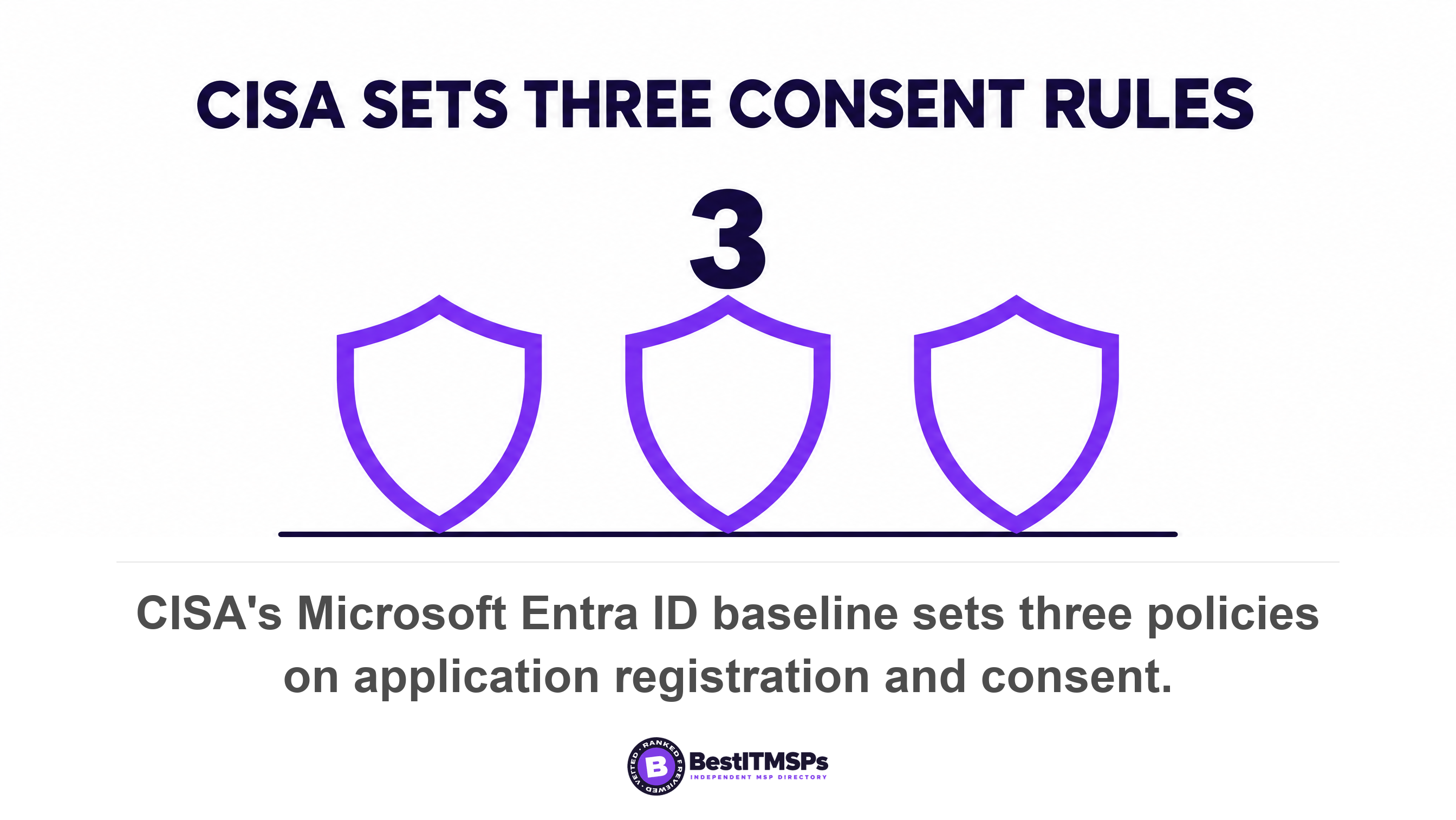
You are not inventing that list. CISA's secure configuration baseline for Microsoft Entra ID sets three policies on this exact subject. It states that only administrators SHALL be allowed to register applications, that user consent to applications SHALL be restricted, and that an administrative consent workflow SHALL be configured for applications. The baseline notes those policies cover custom-developed applications and applications published by third-party vendors alike, so a tool built for you is in scope too.
Least privilege is the standard Microsoft holds itself to here. Its own guidance is that granting an application more privileges than it needs is a poor security practice, because it increases the app's exposure to unauthorized and unintended access to data or operations. None of this makes a tenant perfectly safe, and no honest provider promises that. It makes your app list short, named and dated, which is the only version you can audit. The habit transfers, because the same consent prompt appears on the AI tools your team is already testing, which is where your staff pasting client data into ChatGPT begins. Who restores the data if an app deletes it is a separate question again in whether Microsoft 365 backs up your data.
FAQ
Does changing a password revoke an app's access to Microsoft 365?
No, in most cases. Microsoft's revocation table shows that when a password expires, when the user changes it, or when the user runs a self-service reset, a confidential client's refresh token stays alive. An admin reset from the Microsoft Entra admin center or the Microsoft 365 admin center does revoke it.
Where do I see which apps my staff connected to Microsoft 365?
Open the Microsoft Entra admin center, Entra ID, Enterprise apps, All applications, and set the Application Type filter to All applications, because Enterprise Applications shows non-Microsoft applications only. Then open each app, select Permissions, and read both the Admin consent and the User consent tab.
What is the difference between a delegated permission and an application permission?
A delegated permission is capped by the signed-in person, so the application isn't able to access anything the signed in user couldn't access. An application permission has no cap. Microsoft states an app granted Files.Read.All as an application permission can read any file in the organization, and only an administrator can approve it.
Can I stop staff approving apps themselves?
Yes. Change User consent for applications under Enterprise apps, Consent and permissions. CISA's Entra ID baseline states that user consent to applications SHALL be restricted. Pair it with the admin consent workflow, because blocking consent with no route to approval pushes people toward personal accounts instead.
How long does an app keep working after I revoke its permission?
Up to an hour in most cases. Microsoft states access tokens issued by Microsoft Entra ID last for 1 hour by default, so a token already issued keeps working until it expires. Revoke the permission, then select Revoke sessions on the affected user to invalidate the refresh tokens as well.
Best IT MSP is the independent directory of vetted managed IT and cybersecurity providers across North America. Organic ranking is earned on rating and verified data, and paid placement is always labeled. Take the five questions above to three merit-ranked firms in your city and compare the answers side by side.