Why Is My WiFi Not Connecting?
If your WiFi will not connect, the cause is usually one of a few things: a wrong password, WiFi or airplane mode toggled, being out of range, a device glitch, a router problem, or outdated network drivers.
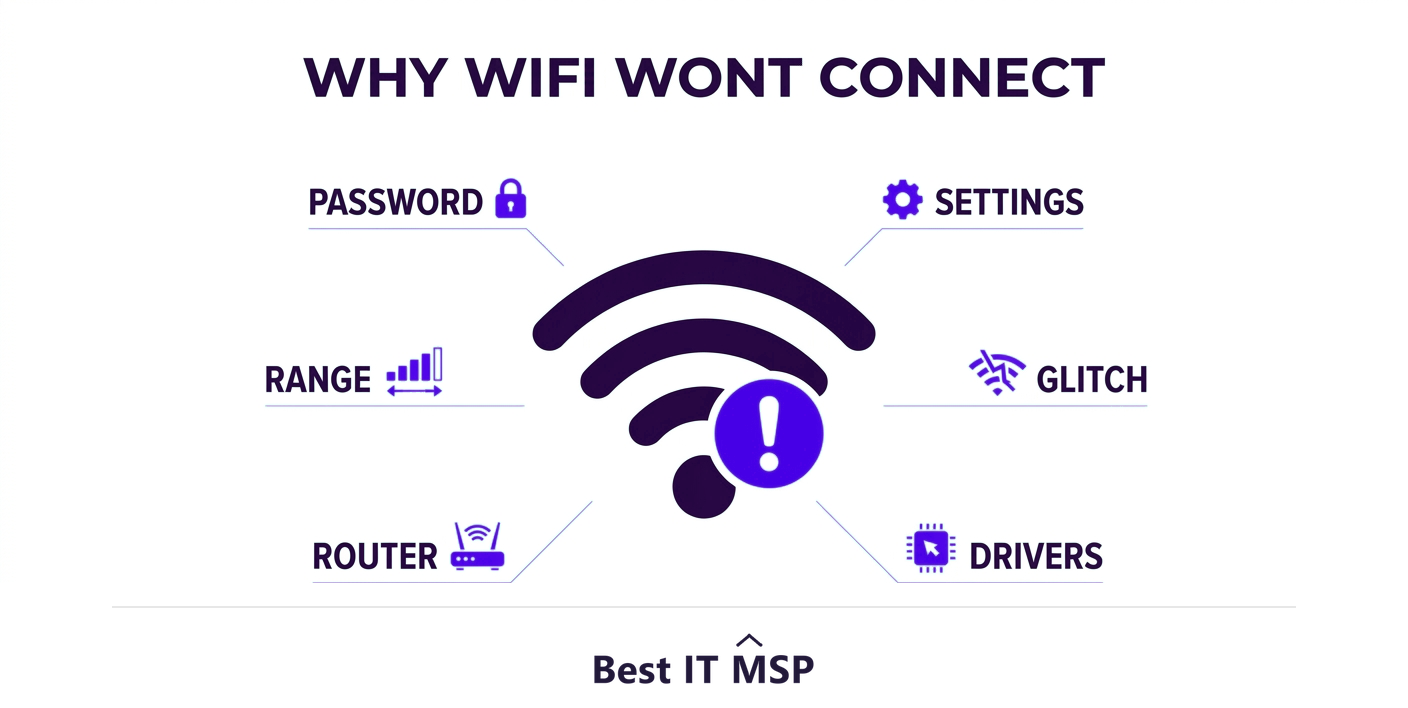
- Most WiFi connection failures come from a wrong password, a toggled setting, range, a glitch, or the router.
- Check whether one device or all devices fail to connect: that tells you where the problem is.
- Forgetting and rejoining the network clears a corrupted connection profile, a very common fix.
- Restart the device and power-cycle the router, then update network drivers for stubborn cases.
- If no device can connect, the router or network needs attention, not the device.
Why WiFi will not connect: the usual suspects
When a device simply will not connect to WiFi, it is frustrating, but the cause is almost always one of a small, familiar set of problems. This is different from being connected but having no internet, which is a separate issue; here the device cannot even join the network. The usual suspects are a wrong or recently changed password, WiFi or airplane mode accidentally toggled, the device being out of range or on the wrong band, a temporary software glitch, a router that needs restarting, a corrupted saved network profile, or outdated network drivers. Work through them in order and you will almost always find the culprit quickly.
This is a minor annoyance at home, but at work it stops people from doing their jobs, and connectivity problems across a business add up fast against a backdrop where an hour of downtime costs most organizations more than $100,000. This guide walks through the causes and the fixes, from the simplest to the more technical. It complements our guides on WiFi connected but no internet and no internet connection, and pairs with our network support services overview.
First: is it one device or all of them?
Before anything else, check whether the problem is limited to one device or affects everything trying to connect. This single question points you straight at the cause:
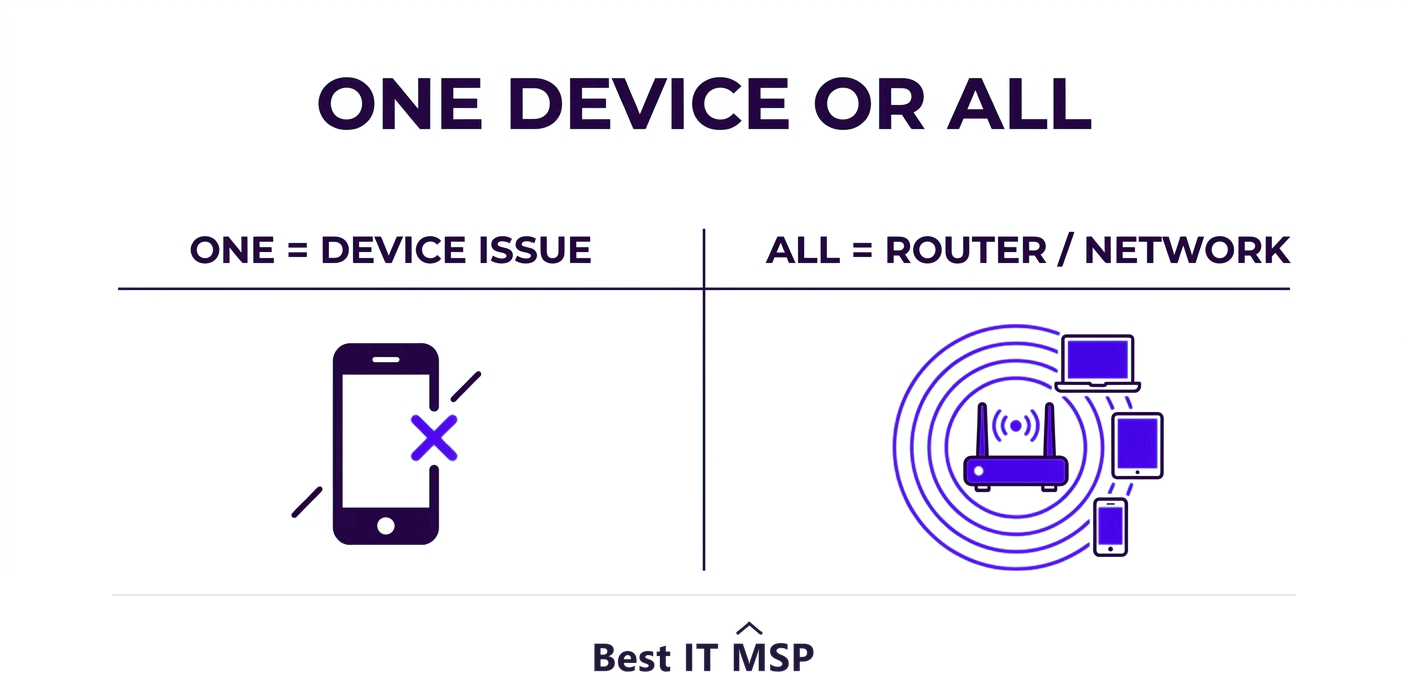
- <strong>Only one device cannot connect.</strong> The problem is that device's settings or software, so focus there: its WiFi settings, saved password, drivers, and toggles.
- <strong>No device can connect.</strong> The problem is the router or the network itself, so restarting and checking the router is where to spend your time, not the individual device.
Answering this first saves you from troubleshooting a laptop for twenty minutes when the router is the problem, or rebooting the router when only one phone is affected.
Check the basics first
Start with the simple things that cause most connection failures, because they take seconds to rule out:
- <strong>Confirm the password.</strong> WiFi passwords are case-sensitive, and a recently changed router password is a very common reason a previously-working device suddenly will not connect.
- <strong>Check WiFi and airplane mode.</strong> Make sure WiFi is turned on and airplane mode is off, it is easy to toggle one by accident.
- <strong>Check you are in range.</strong> Move closer to the router; a weak signal can prevent a connection entirely, not just slow it.
- <strong>Make sure you are choosing the right network.</strong> Confirm you are selecting your network (and the right band, if 2.4 GHz and 5 GHz are listed separately) rather than a neighbor's or a guest network.
Forget the network and rejoin
One of the most effective single-device fixes is to forget the WiFi network and reconnect. Over time, the saved connection profile on a device can become corrupted, causing it to fail to connect even when everything else is fine. On your device, go to WiFi settings, select the network, choose forget, then find it again and reconnect by entering the password fresh. This clears the bad profile and re-establishes the connection cleanly, and it resolves a surprising share of stubborn cannot-connect problems with no other steps needed.
Restart the device and the router
The classic fix is classic because it works. Fully restart the device (a complete power off and on, not sleep) to clear temporary software glitches that block a connection. If multiple devices cannot connect, power-cycle the router: unplug it, wait about 30 seconds, plug it back in, and let it fully restart before trying again. The router is a small computer, and like any computer it occasionally needs a reboot to clear faults. Between forgetting the network and restarting both the device and router, the large majority of WiFi connection problems are solved.

Fix it at the device level
If one device still refuses to connect after the basics and a restart, the issue is likely in its network configuration or drivers. A few reliable fixes: update or reinstall the device's WiFi (network adapter) drivers, since outdated or corrupted drivers are a common cause on computers; run the operating system's built-in network troubleshooter, which can automatically reset the adapter and fix common faults; and as a last resort, use the network reset option that returns all networking to defaults and clears every saved network. Also confirm the device's date and time are correct, because a wrong clock can sometimes block secure connections. These steps clear the stubborn single-device cases.
When the router or network is the problem
If no device can connect, focus on the router and network. Check that the router is powered and its lights show a healthy state; a router that is overheating, failing, or overloaded with too many devices can stop accepting connections. Confirm the WiFi is actually broadcasting (you can check from the router's admin page), and look for settings that might block a device, such as MAC address filtering or a device limit. Aging routers also simply wear out and become unreliable. If power-cycling does not restore service and multiple devices are affected, the router itself may need to be reconfigured or replaced, which is where a more structural fix comes in.
When to get professional help
For a home or a single device, the steps above resolve nearly everything. For a business, recurring WiFi connection problems are a different matter: they mean lost productivity and frustrated staff, and they often point to an under-designed network, aging equipment, poor coverage, or interference that needs proper attention rather than repeated reboots. Designing reliable business WiFi, with enough access points, correct configuration, and capacity for all your devices, takes expertise that is scarce amid a global shortfall of about 4.8 million cybersecurity and IT professionals. It also has security implications, since a poorly secured wireless network is an entry point for attackers, and the average breach costs $4.88 million, takes about 258 days to identify and contain, with reported cybercrime losses topping $12.5 billion a year.
As more of business runs over wireless and in the cloud, in a market where public cloud spending is forecast to top $723 billion in 2025, up from about $595.7 billion in 2024, reliable, secure WiFi has become essential infrastructure, which is part of why so many businesses have a provider design and manage it, and why the managed services market is projected to grow from about $330 billion in 2024 to about $879 billion over the next decade. If WiFi problems keep disrupting your business, a managed IT provider can design and secure a network that simply works. To find one, browse vetted, merit-ranked firms by city in the Best IT MSP directory, where ranking is earned on rating and verified data.
FAQ
Why is my WiFi not connecting?
The cause is usually one of a few things: a wrong or recently changed password, WiFi or airplane mode accidentally toggled, being out of range, a temporary software glitch, a corrupted saved network profile, a router that needs restarting, or outdated network drivers. Working through these in order, starting with the basics, almost always finds the culprit quickly.
How do I fix WiFi that will not connect?
Confirm the password and that WiFi is on and airplane mode off, check you are in range and choosing the right network, then forget the network and rejoin to clear a corrupted profile. Restart the device and power-cycle the router. For a stubborn single device, update its WiFi drivers, run the network troubleshooter, and as a last resort use network reset.
Why does my WiFi connect on other devices but not this one?
If other devices connect fine, the problem is specific to the one device, not your WiFi. Focus on that device: check airplane mode and that WiFi is on, forget and rejoin the network, restart it, update or reinstall its network adapter drivers, run the network troubleshooter, and confirm its date and time are correct, since a wrong clock can block secure connections.
Why will no device connect to my WiFi?
When nothing can connect, the router or network is the problem, not any single device. Power-cycle the router, check its lights show a healthy state, and confirm WiFi is broadcasting. Look for blocking settings like MAC filtering or a device limit, and consider that an overheating, overloaded, or aging router may need reconfiguring or replacing.
Does forgetting and rejoining a WiFi network really help?
Yes, surprisingly often. Over time a device's saved connection profile for a network can become corrupted, causing it to fail to connect even when everything else is fine. Forgetting the network and reconnecting with the password fresh clears that bad profile and re-establishes the connection cleanly, resolving many stubborn single-device cases on its own.
When should a business get help with WiFi problems?
When WiFi connection problems recur or affect many people, since that usually points to an under-designed network, aging equipment, poor coverage, or interference rather than a one-off glitch. Reliable, secure business WiFi takes proper design and has security implications, so a managed IT provider that designs and manages the network is often the right fix.
Best IT MSP is the independent directory of vetted managed IT providers across North America. Compare merit-ranked firms in your city that design, secure, and support reliable business networks. No pay-to-play.